License Information on Licensing Manager Application
Overview
In this article you can find information on how to access specific information about your license through the Licensing Manager application.
Procedure
With InTouch and the licensing manager installed, run InTouch from the desktop icon to open the licensing manager application.
From the Licensing Manager, you can find all the information related to your license simply by clicking on the  button. It will redirect to the Web Portal - License Information page, for that specific license.

If you have a softlock license, you can easily find the PRODUCT KEY associated with that license, as well as other relevant information - Warranty expiration date, Products, Activations, etc. You can also click on the button next to the Product Key to see additional details, for example, the number of remaining activations:
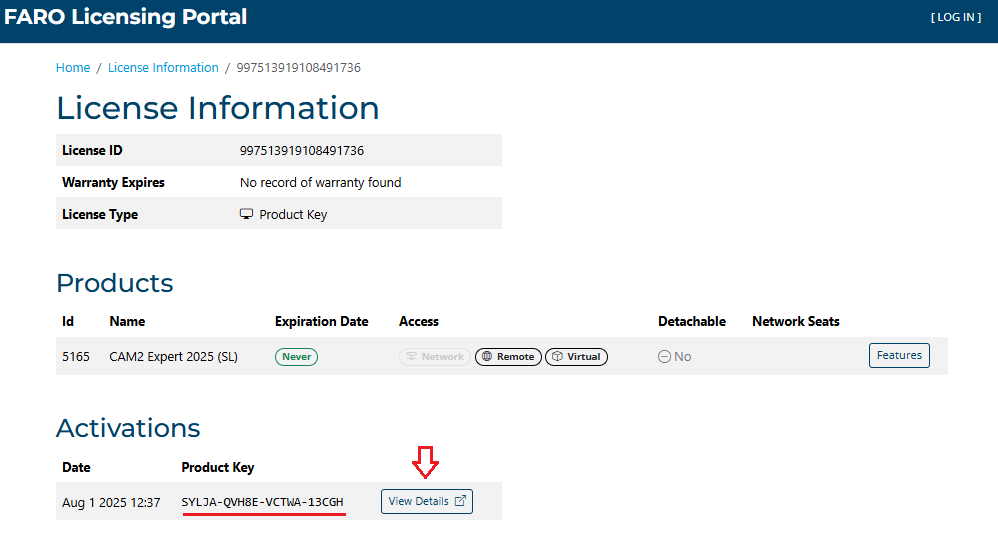
If you have a Dongle (Hardlock license), the most relevant information for support purposes, for example, is the License ID, that you can find here:

NOTE: If you are offline and don’t have internet connection to open the web link, you can still click on the button, copy the unreached url, and send it to an online computer or to Customer Service Agents, for troubleshooting.
