
Error-Code 35845 Sentinel HASP License Driver

Overview
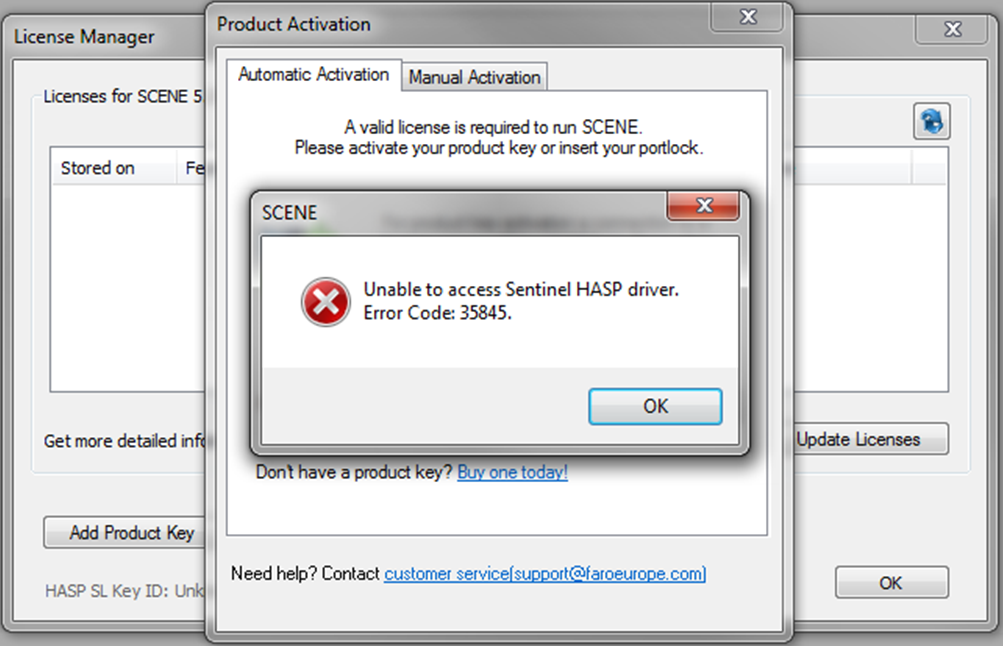
During the process of updating and activating your FARO® software license key, if you are using the manual method of creating a C2V you may see error message 35845 about the Sentinel HASP license driver. You can clear this message by following the step-by-step directions in this article.
Check for the Latest Driver Version, then Uninstall and Reinstall the Driver
- Verify you are running the latest Sentinel HASP license driver. If not, update the diver to the latest version, see: HASP Driver Installation, Update and Repair
- Follow the instructions to create a C2V file and apply the matching V2C file to upgrade and activate your product/license key. This process should complete successfully without displaying error message 35845.
- If the error message still appears, continue to Unblock the Sentinel License Manager Service.
Unblock the Sentinel License Manager Service
If error message 35845 still appears when you try to make a C2V file, it may be that your virus checker or spam filter software is blocking the Sentinel License Manager from communicating with the FARO software. Ask your IT department to alter the virus or spam software domain policies to stop blocking the License Manager.
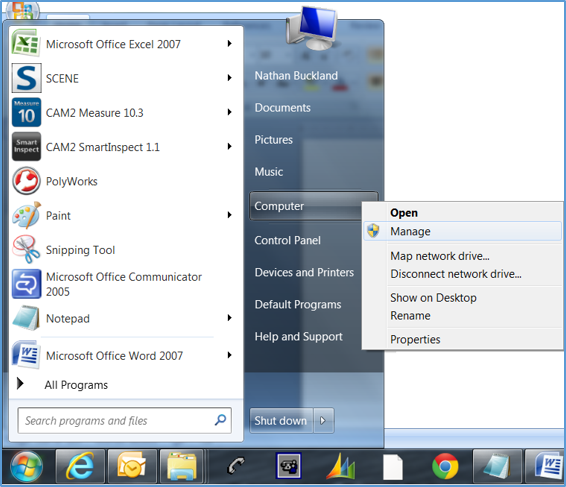
- Click the Windows Start button and in the right panel, right-click Computer and click Manage.
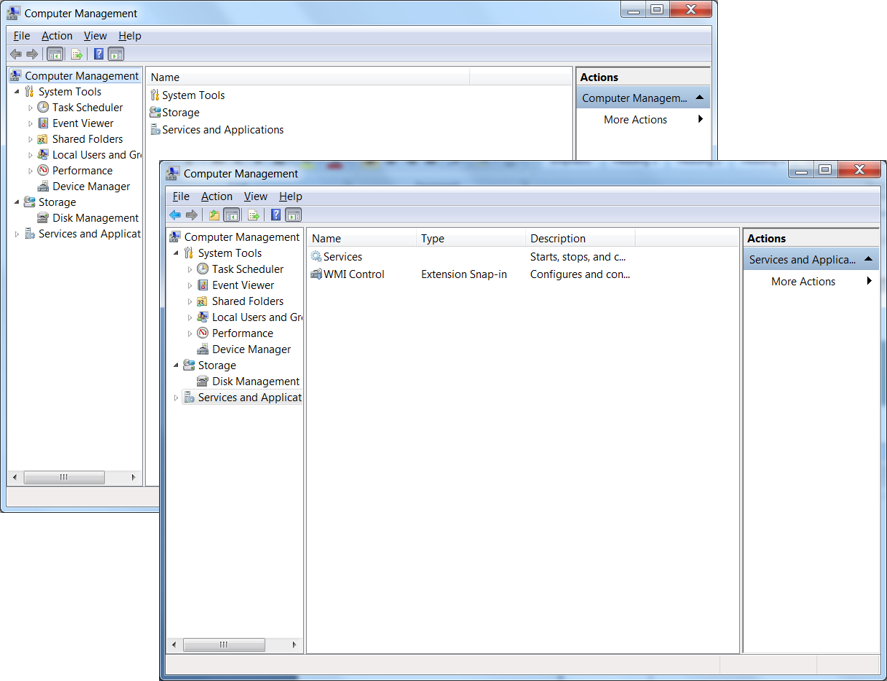
- The Computer Management window appears. In the central panel, double-click Services and Applications and then double-click Services.
- Look for Sentinel LDK License Manager or Sentinel Local License Manager.
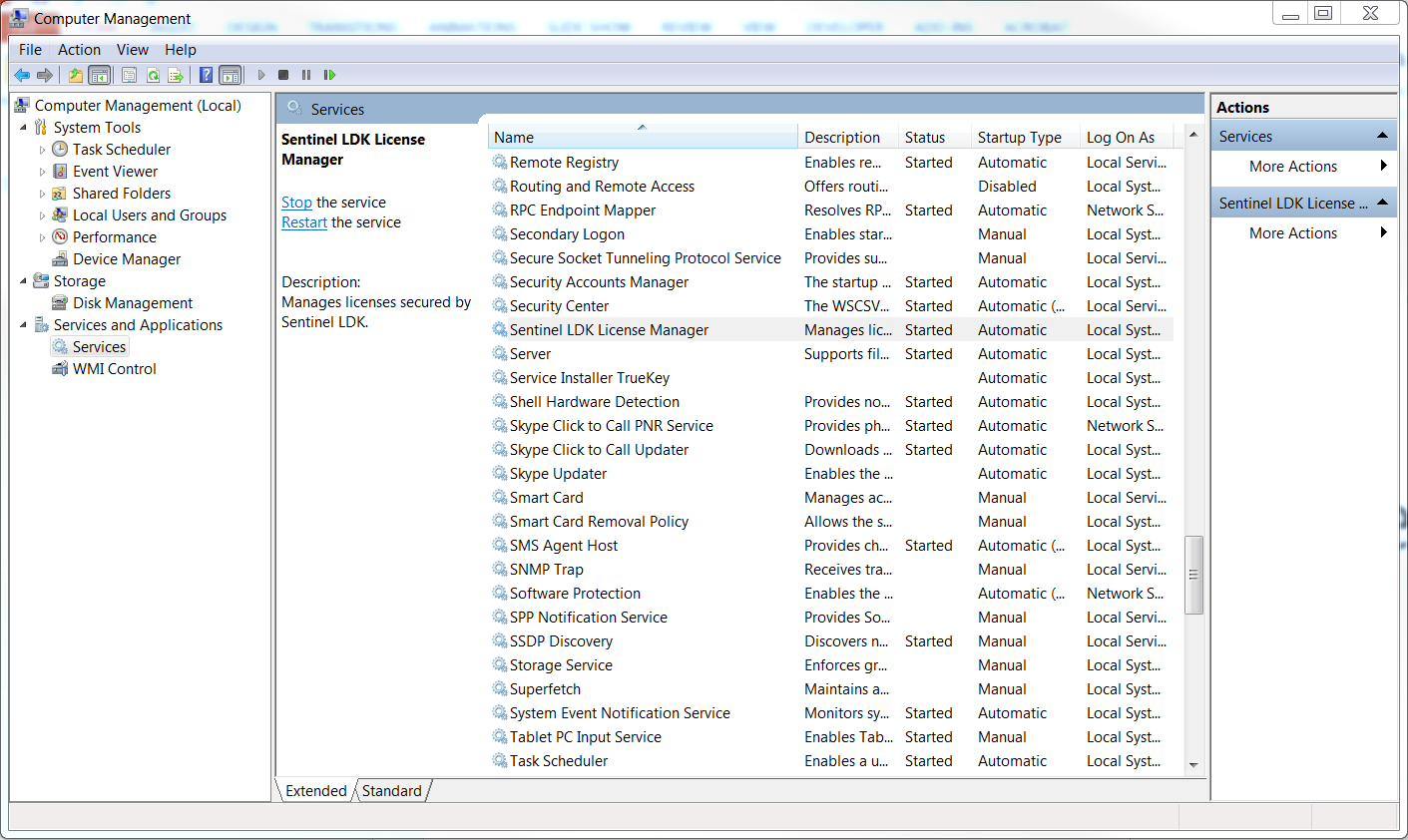
- In the Status column, verify that the service status is Started. If not, right-click on the service and click Start. This service should always be Started and should never be Paused or Stopped, even after reboot. If the status column for this service ever says Stopped or Paused or is null, check the settings for the recovery properties and reset them.
- Right-click on the the Sentinel License Manager service and click Properties.
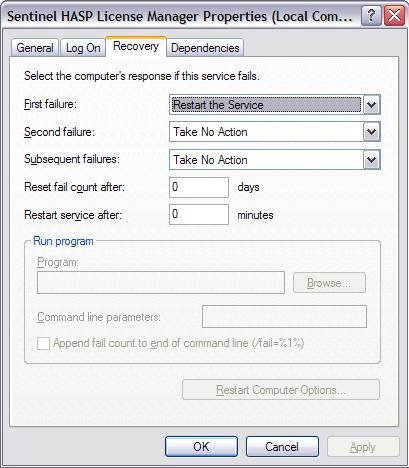
- Click the Recovery tab and set these settings.
- Set First failure to Restart the Service.
- Set Restart Service after to 0 minutes.
- Follow the instructions to create a C2V file and apply the matching V2C file to upgrade and activate your FARO software license key. This process should complete successfully without displaying error message 35845.